PodSay Elementor Kit In-Depth Review: A Developer's Guide to Bu
-
PodSay Elementor Kit In-Depth Review: A Developer's Guide to Building a Pro Podcast Website
Building a dedicated website for a podcast or an online radio station often presents a unique challenge. You need more than a standard blog layout; you need a design that puts your audio content front and center, facilitates discovery of new episodes, and builds a community around your brand. While custom development is one route, it’s often overkill for creators who need to focus on content, not code. This is where the world of page builder templates comes into play, and the PodSay - Radio & Podcast Station Elementor Template Kit aims to be the definitive solution for podcasters using WordPress. In this technical review and guide, we're going to tear it down, build it back up, and determine if it's a genuine accelerator or just another layer of complexity.
What We're Actually Talking About: Deconstructing the "Template Kit"
First, let’s be clear. PodSay is not a WordPress theme. This is the single most important distinction. A theme controls the entire structure and appearance of your site, from the header to the footer and everything in between. A "Template Kit," on the other hand, is a collection of pre-designed page layouts and sections specifically for the Elementor page builder. It’s a design layer that works on top of a theme.
Think of it like this:
- WordPress: The foundation and framing of your house.
- A Theme (like Hello Elementor): The drywall, electrical wiring, and plumbing. It provides the basic, functional structure.
- Elementor/Elementor Pro: Your power tools and building supplies.
- The PodSay Template Kit: The professional interior designer's blueprint, complete with paint swatches, furniture placement, and lighting fixtures. It tells you how to arrange the room for a specific, polished look.
This means you need a lightweight base theme (the free "Hello Elementor" theme is the standard and recommended choice), the Elementor plugin, and, critically, Elementor Pro. Most of the powerful features this kit leverages, like the custom Header, Footer, and Archive templates, are locked behind the Elementor Pro subscription. Don't even consider this kit unless you have or are willing to pay for Elementor Pro. It simply won't function as advertised without it.
First Impressions: Design, Typography, and Niche-Specificity
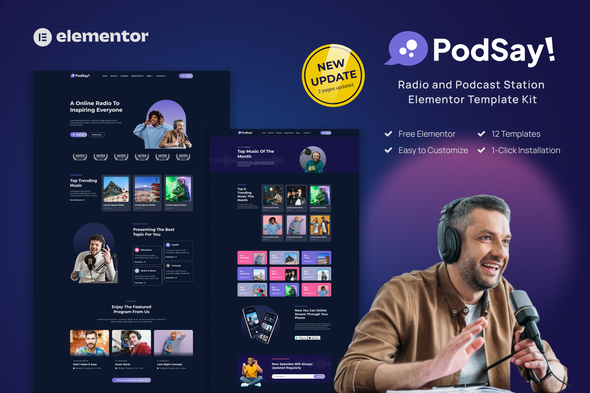
Unzipping the kit and importing it into a test environment, the first thing that stands out is the clean, modern aesthetic. The design language is bold, with high-contrast typography, a well-defined color palette (easily customizable, which we'll get to), and generous use of white space. It avoids the cluttered, amateur look that plagues many podcast websites. The designers clearly understood the brief: make the content pop.
The kit includes a comprehensive set of templates:
- Homepage (multiple variations)
- About Us
- Hosts/Team Page
- Episode Archive / All Shows
- Single Episode Page
- Blog Archive
- Single Post Page
- Contact Page
- FAQ Page
- Header & Footer templates for Elementor's Theme Builder
The typography choices are solid—a strong, attention-grabbing sans-serif for headings and a highly legible body font. This is critical for show notes and blog posts. The visual hierarchy is well-established, guiding the user's eye from the episode title to the player and then to the supplementary content. It feels professional out of the box. From a pure design perspective, it hits the mark for its intended audience.
Under the Hood: A Critical Analysis of the Core Templates
A pretty design is one thing; functional, real-world utility is another. The real test of a podcasting template kit lies in how it handles the most critical pages: the homepage, the episode archive, and the single episode page.
The Homepage
The homepage template is the digital storefront, and PodSay does a commendable job here. It leads with a strong "hero" section, perfect for featuring your latest episode or a "Subscribe Now" call-to-action linking to Apple Podcasts, Spotify, and others. It uses a combination of dynamic and static sections. The "Latest Episode" block is designed to be swapped with a shortcode or a dynamic widget from your podcasting plugin. Further down, you'll find sections for featuring popular episodes, introducing the hosts, and showcasing testimonials. It's a logical flow that answers the key questions a new visitor would have.
The Episode Archive
This is where things get interesting. The episode archive is the backbone of discoverability. PodSay's template for this is a clean, grid-based layout. Each grid item contains the episode's featured image, title, an excerpt, and a "Listen Now" button. It's functional, but this is also where you hit the first major hurdle of implementation. The template provides the layout, but it doesn't provide the podcasting functionality. The dynamic population of this grid with your actual episodes relies entirely on how well Elementor Pro's "Posts" or "Loop Grid" widget can integrate with your chosen podcasting plugin's custom post type. If you're using a plugin like Seriously Simple Podcasting or Castos, you'll need to configure the query in the Elementor widget to pull from the "podcast" post type instead of the default "posts". This isn't a flaw in the kit, but it's a crucial technical step that a non-developer might miss.
The Single Episode Page
This is arguably the most important page on the site, and the template provided is excellent. It features a large area at the top for an embedded audio player. Below this, there's a well-structured layout for show notes, guest information, resource links, and even a full transcript. The inclusion of a dedicated transcript section is a thoughtful touch for both accessibility (SEO) and user experience. Again, the audio player itself isn't part of the kit. You are expected to bring your own player, typically provided by your podcast hosting service (like Libsyn, Buzzsprout, etc.) or your WordPress podcasting plugin, and embed it into the designated space. The layout perfectly accommodates this.
The Plugin Dependency Tightrope and Performance Hits
No Elementor kit exists in a vacuum. PodSay requires Elementor and Elementor Pro. The setup process also prompts you to install other plugins, typically a contact form plugin (like Contact Form 7 or WPForms) and perhaps an icon library plugin. This is standard practice, but every plugin you add increases your site's attack surface and potential for performance degradation.
From a developer's perspective, the primary concern with any Elementor-based site is performance. Page builders, by their nature, add extra divs and CSS classes, which can lead to a bloated DOM (Document Object Model). While PodSay's layouts themselves are clean, they don't magically negate this reality. Once you add a podcasting plugin, a contact form plugin, maybe an SEO plugin, and your analytics scripts, the number of HTTP requests and the overall page weight can climb quickly.
To use this kit successfully in a production environment, a robust caching strategy is non-negotiable. You'll need a high-quality caching plugin (like WP Rocket or FlyingPress) and you should consider server-level caching if your host provides it. Optimizing your images before uploading them is also mission-critical. The templates use large, beautiful images, but if you upload uncompressed 3MB JPEGs, your site's load time will suffer dramatically, regardless of how well-designed the template is.
Installation & Customization: A No-Nonsense Guide
Alright, let's move from theory to practice. Here's a step-by-step guide to getting PodSay up and running on a clean WordPress installation. This assumes you've already purchased and downloaded the PodSay kit .zip file.
Pre-Flight Checklist
Before you begin, make sure you have the following ready:
- A fresh WordPress installation.
- A lightweight theme installed and activated. The "Hello Elementor" theme is the official and best choice.
- The Elementor (free) plugin installed and activated from the WordPress repository.
- An active Elementor Pro subscription, with the plugin installed and activated.
- Your PodSay template kit .zip file.
Step-by-Step Installation
Step 1: Access the Template Kit Importer
In your WordPress dashboard, navigate to Templates > Template Kits. You will see a button that says "Upload Template Kit". Click it.Step 2: Upload and Import the Kit
Drag and drop your PodSay .zip file onto the uploader, or select it from your computer. Elementor will process the file and show you a preview of all the templates included in the kit.Step 3: Install Requirements
Before importing, Elementor will scan the kit and check for dependencies. It will likely prompt you to install plugins like "Elementor Pro" (which you should already have) and potentially a forms plugin. Follow the prompts to install and activate these required plugins. This ensures all the template elements will work correctly.Step 4: Import the Global Kit Styles
This is the most crucial first step. The kit includes global settings for colors, fonts, and layout. Import this first. It will create a unified design system for your entire site, making customization much easier later on. Look for the "Global Kit Styles" item and click "Import".Step 5: Import the Content Templates
Now, you can import the individual templates you need. You can import them one by one or use the "Import All" button. I recommend importing them all to have the full set available. This process will add each page design (Homepage, About, Contact, etc.) and theme builder part (Header, Footer, etc.) to your Elementor library.Putting It All Together
Importing the templates doesn't automatically create your website. It just populates your library. Now you have to build the pages and assign the templates.
Step 1: Create Your Core Pages
Go to Pages > Add New. Create the essential pages: Home, About, Episodes, Contact, etc. For now, just give them a title and publish them.Step 2: Apply the Templates
Edit each page you just created with Elementor. Once the editor loads, click the grey folder icon to open the template library. Go to the "My Templates" tab. You'll see all the PodSay templates you imported. Find the corresponding template (e.g., "Homepage 1" for your Home page) and click "Insert". The pre-designed layout will load onto your page. Click "Update" to save.Step 3: Configure the Header and Footer
This is an Elementor Pro feature. Go to Templates > Theme Builder.- Click on "Header" and then "Add New".
- Close the default popup and, just like before, open the library from the editor canvas.
- Find the imported "Header" template from PodSay and insert it.
- Click "Publish". You'll be asked to set display conditions. Choose "Entire Site".
- Repeat this exact process for the "Footer", assigning it to the "Entire Site" as well.
Your site now has a consistent, professional header and footer across all pages.
Making It Your Own: The Real Work Begins
The kit is now installed, but it's filled with placeholder content. The real work is in customization.
- Global Styles: Go to the Elementor editor on any page, click the hamburger menu in the top-left, and select "Site Settings". Here, under "Global Colors" and "Global Fonts", you can change the entire site's color scheme and typography to match your brand in just a few clicks. This is the power of importing the Global Kit Styles first.
- Replacing Content: This is straightforward. Click on any text box, image, or button and replace the placeholder content with your own. Update logos in the header, social media links in the footer, and your own text and photos on the About page.
- Connecting Your Podcast: This is the most niche-specific task. The "Latest Episodes" sections are just placeholders. You need to delete the placeholder widget and replace it with a widget or shortcode from your podcasting plugin (e.g., the Seriously Simple Podcasting "Podcast Player" widget or a shortcode from Castos). You'll configure this new widget to display your episodes dynamically. This is the key integration step that makes the site truly functional.
The Final Verdict: Is PodSay Worth Your Time and Money?
So, what's the bottom line? The PodSay Elementor Template Kit is a high-quality, professional design package that serves as a massive accelerator for a specific user. It successfully translates the needs of a modern podcast or radio station into a functional and aesthetically pleasing set of web templates.
Who is this for?
- Solo Podcasters & Small Teams: If you're a content creator who wants a pro-level website without hiring a developer, and you're already committed to the Elementor Pro ecosystem, this is an absolute home run. It will save you dozens, if not hundreds, of hours of design and layout work.
- Freelance Web Developers: For developers building sites for clients in the podcasting space, this kit is a phenomenal starting point. It allows you to deliver a polished, custom-looking site on a tighter budget and timeline.
Who should skip it?
- Performance Purists: If your primary concern is shaving every last millisecond off your load time and you prefer hand-coding or using Gutenberg, the Elementor dependency will be a non-starter.
- Those on a Shoestring Budget: The cost isn't just the kit itself; it's the mandatory Elementor Pro subscription. If that's not in your budget, this kit isn't for you.
- The Technologically Timid: While it's "no-code," it's not "no-tech." You still need to be comfortable inside WordPress, understanding the difference between a page and a template, and be prepared to configure plugins. It's an accelerator, not a one-click magic button.
Ultimately, PodSay delivers on its promise. It's a thoughtfully designed, comprehensive template kit that provides all the visual components needed to build a top-tier podcasting website. The value proposition is clear: it trades a bit of performance overhead and a reliance on the Elementor Pro ecosystem for a massive savings in time and design effort. For its target audience, that's a trade well worth making. You can find a wide variety of similar tools on gplpal, which also offers a huge selection of Free download WordPress themes for those looking for different solutions.